FREE ✨Smarticles!✨

Connect with ✨Your Smarticles✨ to get our latest content by email.

Powered by ConvertKit
Showing posts with label educational technology. Show all posts

ChatGPT for Teachers

The artificially intelligent chatbot known as ChatGPT has taken the world by storm. If you haven’t heard of this newly emerged resource, take a look, as it is posed to revolutionize information generation as we know it!

What is ChatGPT?

ChatGPT is a remarkable, conversational language chatbot designed to engage in dialogue with users by providing replies and responses to questions and requests provided in the prompt bar. It is a revolutionary and incredibly useful technology because it was developed, and specifically trained to look for meaning and context in the prompts. True to the name of artificial intelligence, ChatGPT demonstrates a near intuitive knowledge of what the user seeks. This is not some inaccessible technology, this is a tool designed to understand the context and nuance of actual human conversation.

Artificial Intelligence, as a concept, is not a new one. It has been around since the mid-fifties as scientists discovered machines as a source of generating knowledge. The concept of artificial intelligence was coined by John McCarthy an American computer scientist and pioneer. Since then, AI I has continued to evolve to the point that it is ubiquitous in our lives as teachers. From calculators to adaptive learning software, and even Siri or Alexa, the idea of AI is not so foreign as we’ve used computers and technologies to aid our instruction for quite some time now.

Limitations

There are many known limitations of ChatGPT, many of these limitations are self-proclaimed on the opening page of the platform. These limitations should be considered when interacting with the bot. Most worthy of mention is the fact that ChatGPT can (and does) return inaccurate information at times, so it is important to review the material that it generates. The second mentionable fact is that content may contain bias. The bot was trained by humans, as such, some of the content may reflect inherent bias of the trainers. Finally, ChatGPT lost access to the internet in November of 2021 therefore any reference to events after that date cannot be made. Nonetheless, ChatGPT could quite possibly be your new best friend when it comes to creating content for your classroom.

Getting Started

If you haven’t tried ChatGPT, the best way to get started is to dive right in and dabble. To access ChatGPT, head on over to https://chat.openai.com/chat and sign up for a free account. You’ll need to enter your email and phone number to gain access to the platform. Retrieving information is quite easy as the bot is designed to engage in dialogue with you right from the beginning. Typing a phrase or request in the prompt bar will return information based on your request in the form of a conversation.

Teachers are discovering that ChatGPT is great at providing information, ANY type of information. Simply making a request in the prompt bar returns surprisingly thorough and accurate information; much better than a typical search engine. In Artificial Intelligence to Streamline Your Teacher Life: The ChatGPT Guide for TeachersArtificial Intelligence to Streamline Your Teacher Life: The ChatGPT Guide for Teachers we go into great depth examining how to effectively prompt the machine to retrieve content more effectively, but even just as you begin interacting with the bot, you can immediately retrieve helpful content!

The ChatGPT Guide for Teachers

Ideas for Use

There are several features of ChatGPT that I’ve found to be extremely useful in any classroom. Below are some suggestions that you might want to consider to support your instruction.

Lesson Planning: ChatGPT can generate a lesson plan with step by step suggestions on how to implement the plan.

Standard Alignment: Curious about how your existing lesson aligns with standards? Input the content you plan on teaching and ChatGPT will return the NGSS standards that align with your material.

Creating Lists of Information: Looking for a list of vocabulary words that correspond with your content? ChatGPT excels in retrieving lists of terminology.

Defining Vocabulary: Looking for easy to understand definitions of vocabulary words that you’re using in your unit plan? ChatGPT can return definitions AND can also pair those definitions down into understandable vocabulary dependent on the grade level you teach.

Generating Examples: Looking for other examples of material to illustrate or demonstrate a concept? Ask ChatGPT to be your brainstorming machine. Enter a concept into the prompt and ChatGPT will help generate examples for you to use in your class.

Writing Reading Passages & Generating Questions: Have ChatGPT generate a reading passage based on your topic. Additionally, prompt it to generate multiple choice, true/false or fill in the blank questions based on the passage it just wrote.

Grading Rubrics: Need suggestions on ways to grade student work? Have ChatGPT generate a grading rubric for you. Enter the type of rubric and the point values you require and ChatGPT will generate the categories and performance levels descriptors for you.

Once you get started using ChatGPT you’ll see that the possibilities are limitless. ChatGPT just might be able to lift a little of the instructional load in your classroom!

As always, thanks for ✨Using Your Smarticles✨


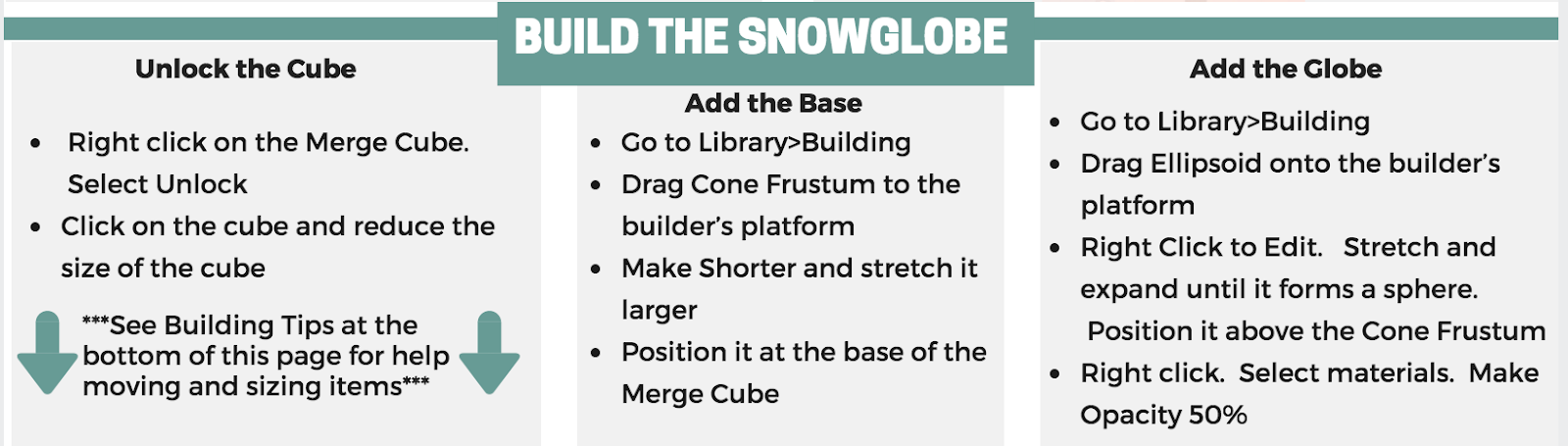
Merge Cube Snow Globe

My FAVORITE new project for the winter season is this FUN SNOW GLOBE POETRY project featuring Merge Cube and CoSpaces.


Here's How I Did It!


Check out this video for details:  https://www.youtube.com/user/mrshoward118/


Need a template?  Click here!


Need a video tutorial?  Click here


As Always, thanks for:


"Alexa shoots....and she Scores!!"

Like a hockey puck poised on the edge of my desk, Alexa waits for her shot. She's better than a biscuit in the basket and undoubtedly, she scores in the classroom.  Take a look at this barn burner group of ideas that'll be sure to score a hat trick in YOUR classroom!


Using Alexa Echo Dot

Connecting Echo is fast and easy using the companion app either on Fire OS, Android, iOS or a desktop computer. I had mine up in running in less than 10 minutes and off I went exploring ways to use it in my classroom.


Here's a Round-Up of Classroom Ideas!

#1. Tell me a Pun

Of COURSE I had to put this one first. Alexa will tell you a daily pun that will start your day with a smile!! "Why don't oysters share their pearls? They're shellfish"  But don't worry, Your Smarticles will share all the 'pearls' of wisdom she has!!

#2. Play Relaxation Music

Ask Alexa to play you some relaxation music. Go ahead, boss her around if that makes you feel better. She'll even play specific music such as ocean sounds or instrumental music. A GREAT way to calm a restless class or to serve as background music during quiet activities.

#3. Set a Timer

This feature is probably the one I use MOST frequently! From silent reading time to timing Kagen activities, I'm frequently setting timers to monitor classroom activities.

#4. Pick a Random Number between 1 - 24

Not sure which student to choose? NUMBER THEM! Alexa chooses who's going next, who's going to respond and who's student of the day by asking her to select a random number.

#5. Roll a Dice (Roll Two Die)

#6. Flip a Coin

#7. Pick a Card

#8. Play Rock Paper Scissors

These four decision makers will help solve disagreements EVERY time!! Have Alexa determine the outcome of a dice roll, coin flip and even a playing card.

#9. How do you spell Pygmalion?

Have you ever had the spelling stumped student that can spell a word, find a word or even spell check a word because their spelling is SO far off? Have them ask Alexa! Using a verbal request solves issues of attempted spelling and sets students in the right (write) direction.

#10. What is 23 divided by 25?

Looking for quick math assistance? Have students use Alexa for quick math facts. Not looking to lift your pen to calculate a percentage while grading? Ask Alexa to do your math FOR you so you can grade the day away!!!

#11. How many _____ are in a ______?

Support math standards for conversion or simply assuage your own curiosity about conversions.

#12. What is the definition of assuage?
#13. What is a synonym/antonym for assuage?

Use Alexa like you'd use a dictionary.

#14. What is the Fact of the Day?

Each day have students ask Alexa a question about any (appropriate) subject the student is interested in. Have students keep track of these facts in a journal and then quiz each other about them at the end of the month.

#15.  Use Alexa like a Hands Free Search Engine
  • Alexa, Wikipedia: [subject]."
  • Alexa, how tall is [person or object's name]?"
  • Alexa, how many people live in America?"
  • Alexa, give me a 'Spongebob' quote."

But wait, there's MORE....much MORE!!!!

Alexa offers a HOST of 'skills' (similar to apps) that can be activated in any topic or subject area imaginable.  At last count, there were over 10,000 different skills.  The skills are enabled through the companion app either on Fire OS, Android, iOS or a desktop computer.  I like searching Amazon for Alexa skills as they are described, rated and can be enabled direction from Amazon.

Some of my favorite ones are:

Quizlexa:  This skill talks to your existing Quizlet card sets and quizzes students on the vocabulary sets that you've built within Quizlet...how cool is that??!?!?
Mad Libs:  Practice parts of speech by providing this app with nouns, verbs, adjectives to fill in a digital story that Alexa recites back to you.
The Magic Door:  Sit back and enjoy a customized, imaginative (albeit silly) story using the name of one of your students.
Pig:  This two player dice game keeps students on their toes and considering probability as they risk their points an roll, or keep their points and see how Alexa fares in this digital dice battle.
Tricky Genie: Train listening comprehension skills by listening to 1 of 12 stories.  Pick the right 'sack' based on the story and win!
Would you rather:  With family friendly options, this game of choices is a GREAT getting to know you activity!
Hangman:  Test word knowledge and have FUN playing this traditional hangman style game with content appropriate for ALL ages.
Twenty Questions:  Alexa will model outstanding questioning strategies in this game of twenty questions where students try to outwit Alexa with their item choice.
Magic 8-Ball:  Ask any question and test Alexa's prediction skills as the Magic 8-ball determines your fate.

I'm sure this post will evolve and change just as Alexa's skills change,  Meanwhile, I hope you're inspired to try Alexa..... and of course I hope you're ALWAYS,

Don't forget to PIN so you can come back again!!


Bored Students. Google Cardboard that is!

My Google Cardboard journey has begun.  As of yet, I do not know where it will lead me, but I've become intrigued, have begun diving in, and here's what I've discovered.

#1.  Google Cardboard is a high-tech, low-cost, approachable way to bring the Occulus Rift style Virtual Reality into your classroom.

#2.  Google Cardboard CAN be made with a LOT of patience and a few easy to obtain supplies.

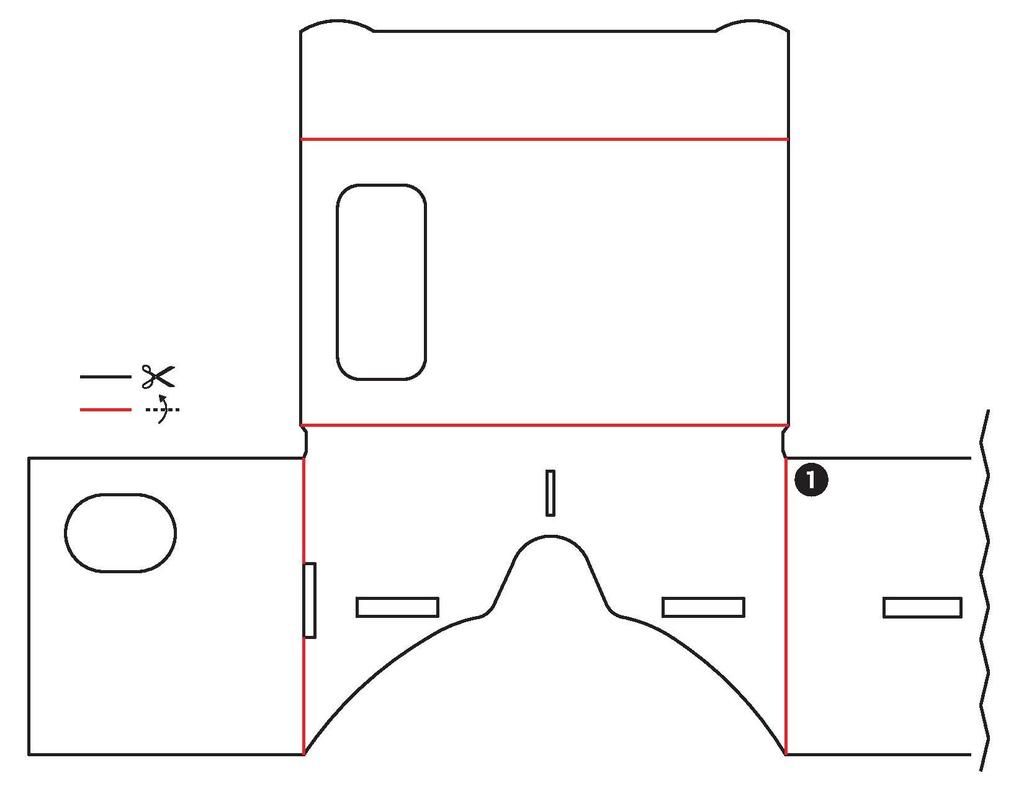
I downloaded these templates to make my own:


-I ordered these Lenses:   25*45MM BiConvex Lens for Google Cardboard 3D VR Glasses  Banggood.com


-I bought these magnets:  Home Depot.  Neodymian Disc and Button Magnets. 

#3.  Google Cardboard requires a LOT less patience if you just order it online.  There are MANY MANY MANY suppliers and it can be a bit overwhelming to peruse all of the options.  I was EXTREMELY happy with my Amazon purchase for $11.99 which had me up and running on Cardboard within a day.  It was easy to fold and easy to understand.


#4.  There are a few dabbling educators and concrete, approachable classroom resources are slowly beginning to emerge.  The Cardboard app is the best way to get started.  The app offers several 'modes' for exploring how cardboard works.  The Urban Hike mode was the most intriguing for me and had me journeying to The Great Barrier Reef, Shanghai, Paris, London and even New York City!  These journeys helped me realize the WOW factor for students when it comes to integrating this technology into the classroom for virtual field trips.


#5.   Speaking of virtual field trips, explore the Expeditions program!  Expeditions is a virtual reality platform built for the classroom. The creators of Expeditions have worked with content partners from around the world to create more than 100 engaging journeys - making it easy to immerse students in entirely new experiences.  To get involved, visit their website and request a visit.

#4. Apps.   More and More apps are appearing that capitalize on this great technology.  Here are the iOS apps I've explored.

VRSE: https://itunes.apple.com/us/app/vrse-virtual-reality/id959327054?mt=8

Dinotrek:  https://itunes.apple.com/us/app/dinotrek-vr-experience/id1018497986?mt=8

Stereotopic Tunnel  https://itunes.apple.com/us/app/stereoscopic-tunnel-effect/id658276824?mt=8&ign-mpt=uo%3D8

Dive City Rollercoaster:  https://itunes.apple.com/us/app/dive-city-rollercoaster/id771293168?mt=8&ign-mpt=uo%3D8

3D Tube: https://itunes.apple.com/us/app/3dtube-youtube-3d-video-player/id594614158?mt=8&ign-mpt=uo%3D8

The Height:  https://itunes.apple.com/us/app/the-height/id764996957?mt=8&ign-mpt=uo%3D8

Tales from the Minus Lab:  https://itunes.apple.com/us/app/fov2go-tales-from-minus-lab/id503346367?mt=8&ign-mpt=uo%3D8

#5.  #360 Video.  I highly recommend you follow 360 video channel on YouTube.  This initiative has people all over the world recording 360 videos that provide authentic 3D experiences (even without Cardboard).  If viewed on cardboard, the immersive effect is even greater! This video is the launching point for my first Cardboard Classroom Initiative (explained below)  Watch 360 videos on tablet or mobile devices for the most enhanced experience.  Here's how to use 360 Videos!

Android Viewing of 360 Video
If you have an Android device, you can view the YouTube 360 videos through Google Cardboard for a completely immersive VR experience.  Open videos on your Android Smart Device and click the      symbol.  This will convert the YouTube presentation to a Photosphere view and allow you to view and interact with the video through Google Cardboard.

iOS Viewing of 360 Video - NOW AVAILABLE!!!

As of November, 2015, iOS doesn’t have a YouTube 360 support app provided through Apple or Google, however, and independent developer HAS devised a viewer for Google Cardboard.  This viewer is called:  in360Tube,

#6.  Cardboard Classroom Initiative.  Want to try it???    Here's are some ideas!!!


Never bored with cardboard or